Why Your Emails Go to Gmail Promotions Tab and Spam Folder
By Chandan Pawar, Inboxline
I have been working in email infrastructure for more than 10 years now. Every week I get messages from business owners and marketers saying the same thing. My emails are going to Promotions. My emails are going to Spam. I have tried everything but nothing is working.
In most cases the problem is not what they think it is. People spend weeks changing subject lines and email content but the actual problem is in their technical setup. In this article I will share what I check when a client comes to me with this problem and what actually fixes it.
"Promotions Tab and Spam Folder Are Not the Same Problem"
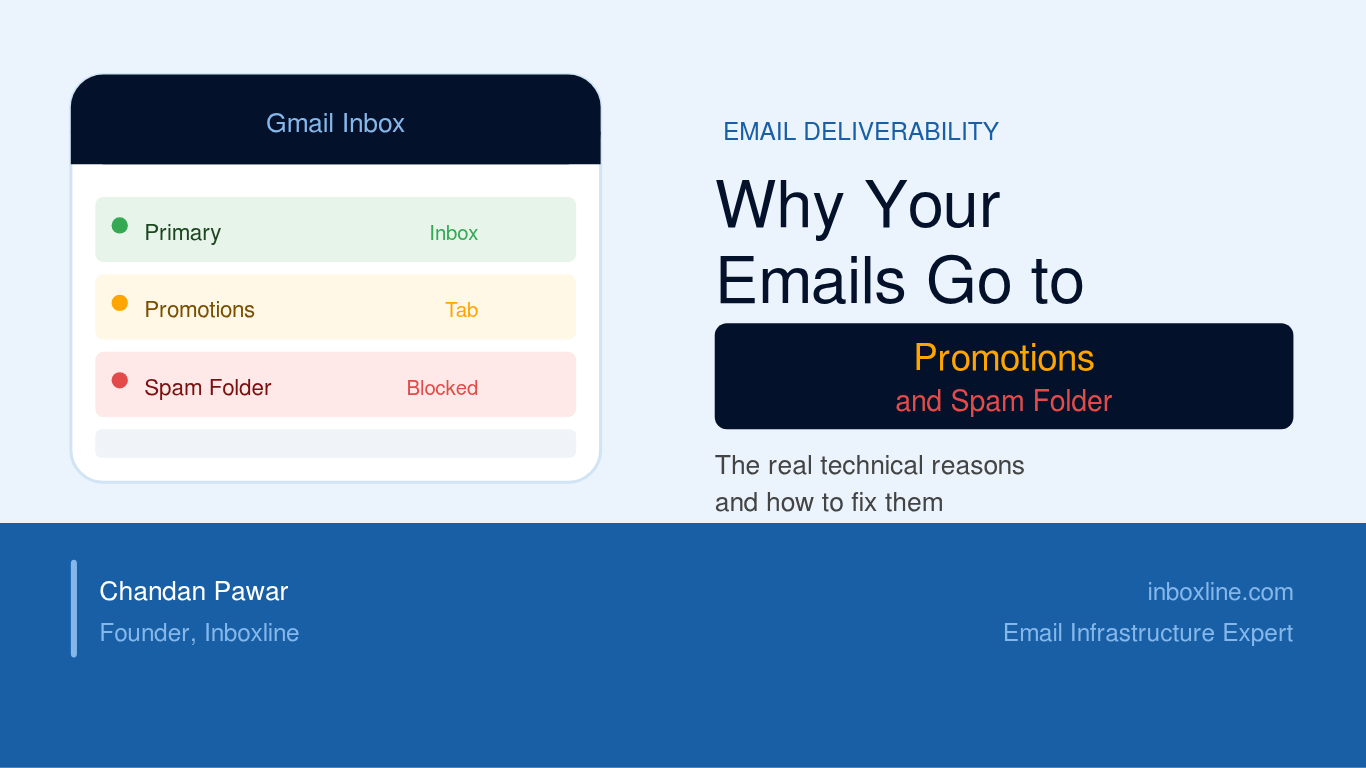
Before I explain the reasons I want to make one thing clear. Landing in Promotions and landing in Spam are two different situations. Many people treat them the same way but they are not.
Promotions tab means Gmail has decided your email looks like a bulk commercial message and put it in the Promotions category. The email was delivered successfully. It just went to the wrong tab. This is fixable and recovery is faster.
Spam folder means Gmail does not trust your sending domain or IP address. Gmail is actively filtering your emails away from the inbox. This is more serious and takes longer to fix. It usually means there is a deeper problem in your infrastructure.
Understanding which problem you have is the first step to fixing it correctly.
First I Need to Understand Your Full Setup
Before I touch anything I ask questions. The diagnosis is completely different depending on whether you are using a cold email platform or running your own email server.
If You Are Using Cold Email Tools Like Smartlead, Instantly or Apollo
Domain and Mailbox Questions:
- How many sending domains are you using and how many mailboxes per domain?
- Are your domains newly registered or do they have some history?
- Do your domains have a real website or just a forwarding link or a blank page from the domain registrar?
- Where are your mailboxes hosted? Google Workspace, Microsoft Outlook or some third party mail provider?
Warmup Questions:
- Are you currently warming up your mailboxes or did you warm them up some time ago and then stopped?
- What warmup tool are you using and what are your current warmup settings?
- How many emails are you sending per mailbox per day?
Database Questions:
- When did you last verify your contact database?
- What is your current bounce rate and reply rate?
- Are you tracking unsubscribes and removing them from your list?
If You Are Running Your Own Email Server
If you have your own infrastructure I go deeper with the questions.
- What mail platform are you using? MailWizz, PowerMTA, Postfix, Postal or something else?
- What SMTP are you using and how is it configured?
- Are you sending from one IP address or a pool of multiple IP addresses?
- Where did you purchase your VPS or dedicated server and does that provider allow bulk mailing on their network?
- What is your daily sending volume and how is it spread across your IP addresses?
- Are you sending to B2B or B2C audience? This makes a big difference in the inbox placement strategy.
- Are your email templates HTML or plain text? How many images and links are in each email? Are any of the links broken or using heavy redirects?
- How old are your sending domains and do they have real websites?
I never skip this step. If I go straight to fixing things without understanding the full setup I will always miss something important.
The Real Reasons Emails Go to Promotions or Spam
Authentication Records Are Wrong or Broken
SPF, DKIM and DMARC are the foundation of email authentication. Gmail checks all three before deciding where your email goes. What most people do not know is that having these records set up incorrectly is sometimes more damaging than not having them at all. A broken record gives Gmail confusing signals about your domain.
SPF tells Gmail which servers are allowed to send email from your domain. It has strict rules and specific limits that most senders do not know about. One small mistake in the record can break it completely and Gmail will not send you any notification that it happened.
DKIM adds a digital signature to every email you send. Gmail checks this signature against a key that is published in your DNS records. If the settings on your sending platform do not match what is in your DNS then every single email you send will fail DKIM verification. Again you will not know unless you are monitoring properly.
DMARC tells Gmail what to do when SPF or DKIM fails. Most people set up DMARC once and never look at it again. But DMARC also sends you daily / Weekly reports showing how many of your emails are passing and failing authentication. These reports are very valuable. Almost no one reads them.
Authentication problems cause both Promotions and Spam issues. If authentication is broken nothing else you fix will last.
IP or Domain Is Blacklisted
Your sending IP address or domain can get listed on email blacklists and you will receive no notification about it. Your emails will keep going out but they will stop reaching inboxes.
There are more than 100 active email blacklists. Some of them are used by Gmail, Outlook and almost every major inbox provider. Getting listed on one of the big blacklists can push your emails directly into Spam overnight.
I have worked on projects where clients were blacklisted for months and had no idea. They kept sending and kept making the problem worse every day.
Getting delisted is not the fix by itself. You have to find the root cause first. If you just request removal without fixing the problem you will get blacklisted again within a few days.
High Bounce Rates That Are Being Ignored
This is the problem I find most often. And it is the one that clients are most resistant to accepting.
Email addresses become invalid over time. A contact list that was clean two years ago has lost many valid addresses. When you send to invalid addresses you get hard bounces. When your bounce rate goes above a certain level Gmail starts treating your domain as a low quality sender and emails start moving from Promotions into Spam.
I have worked on several projects where clients had tools like Apollo or Smartlead for two or three years but had never actually sent any emails. Then suddenly they launched a full campaign to their entire old database. The bounce rates were very high. The domain reputation was damaged in just a few days.
One important thing to understand. Opt in does not mean deliverable. An email address can be legitimately opt in and still be invalid, abandoned or turned into what is called a spam trap. Spam traps are addresses used by blacklist organisations to catch senders who do not clean their lists. Hitting spam traps can get you blacklisted immediately.
Fresh Domain With No Real Website
Gmail checks your domain the way a bank checks a new customer. It looks for history, consistency and trust signals.
A domain that was registered recently with no website, no history and no sending record that suddenly starts sending hundreds of emails per day looks suspicious to Gmail. The blank placeholder page that domain registrars put on unused domains does not count as a real website.
Even a simple one page website with real content makes a noticeable difference. It tells Gmail that this is a real business and not a throwaway domain created only for sending bulk emails.
Sending Volume Spikes
Gmail watches your sending patterns over time. If you go from sending zero emails to sending hundreds or thousands in one day the algorithm notices immediately. This is one of the quickest ways to get classified as a bulk sender or get filtered into Spam.
Volume needs to be increased slowly and consistently. This is true for new domains, new mailboxes and even older domains that have not been used for sending in 30 days or more. An inactive domain needs to be warmed up again before you resume full volume.
No Monitoring at All
Two free tools that every sender should have set up from day one.
Google Postmaster Tools shows your domain reputation and IP reputation as Gmail sees it directly. If your reputation is rated as Bad in Postmaster Tools then changing your subject lines will not help you. You need to know your reputation status before doing anything else.
Microsoft SNDS shows your reputation with Outlook and Microsoft 365. If you are targeting business audiences then many of your contacts will be using Microsoft email. Outlook has its own filtering system that is completely separate from Gmail.
Without these tools you are guessing. I have had clients come to me after months of troubleshooting who did not know their Gmail domain reputation had been showing as Bad for three months or more.
How I Actually Fix It
Step 1 : Is always a full technical audit. Before I change anything I check everything. DNS records, blacklist status, bounce data, domain age, website, sending logs and Postmaster reputation data. This gives me a clear picture of what is broken and what needs to be fixed first.
Step 2 : Is fixing the technical issues. This includes authentication records, blacklist removal, server or platform configuration, bounce handling, unsubscribe management and setting up proper monitoring.
Step 3 : Is a controlled Gmail warmup. Before any serious sending volume resumes I run a manual warmup focused on Gmail. Small volumes, good content, daily monitoring of spam folder versus inbox placement. Minimum one week before increasing volume.
Step 4 : Is slow volume increase. Once warmup shows clean results I increase sending volume gradually while watching bounce rates, spam complaint rates and Postmaster reputation data continuously. If any negative signal appears I reduce volume immediately and investigate.
Step 5 : Is inbox testing using GlockApps. Throughout the whole process I test inbox placement across Gmail, Outlook, Yahoo and other major providers. This shows in real time whether emails are landing in Primary inbox, Promotions or Spam and whether the fixes are actually working.
How Long Does It Take to Fix
Technical fixes take around two to four days.
But improving deliverability and rebuilding domain reputation takes at minimum four weeks. Sometimes eight to twelve weeks depending on how badly the reputation was damaged before work started.
I will be honest with you. No expert can give you an exact date for when your inbox placement will fully recover. Anyone who promises you results in seven days does not fully understand how domain reputation works.
What I can do is fix what is wrong on the technical side. What I cannot control is what you do after. The clients who get results fastest are the ones who follow the warmup process properly, do not rush to increase volume, keep their lists clean and stay patient. The clients who struggle are the ones who push for faster results and then wonder why the problem keeps coming back.
Email deliverability is not a one time fix. It needs ongoing attention.
Should You Get Professional Help
If you have been dealing with Promotions or Spam issues for more than two to three weeks and basic fixes have not worked then a proper technical audit will save you a lot of time and prevent more damage to your domain reputation.
At Inboxline I offer a free 15 minute call to understand your setup and give you an honest view of what is wrong and what needs to be done. No obligation at all.
Still struggling with Gmail Promotions or Spam placement?
Inboxline provides email infrastructure audits, deliverability consulting, and domain reputation analysis to help improve inbox placement.
Book a free consultation at inboxline.com
I am Chandan Pawar, the founder of Inboxline, a specialist email infrastructure and deliverability consultancy. With more than 10 years of hands-on experience, I have helped businesses across India, the USA, Spain, and other countries build reliable email infrastructure and resolve complex email deliverability issues. I am also a Top Rated freelancer on Upwork with a 100% Job Success Score, reflecting my commitment to delivering high-quality results for every client.